This article relates to https://candidateportal.verifile.co.uk/
This guide explains how to complete your Digital ID check using your mobile phone for a UK Criminal Record check and a UK Right to Work check.
It assumes you are starting this process directly from your Verifile candidate portal.
What you’ll need
- Verifile invite email
- Access to the Verifile candidate portal
- A smartphone with a camera
- Either the Post Office EasyID or Yoti apps
- Valid ID documents (e.g. passport)
How to complete your Digital ID check
1. Access the Verifile Portal
- Open the “Get Started” link from your email
- Sign in or create an account using your email
- Once logged in, select "Start Check", then Start Screening Form
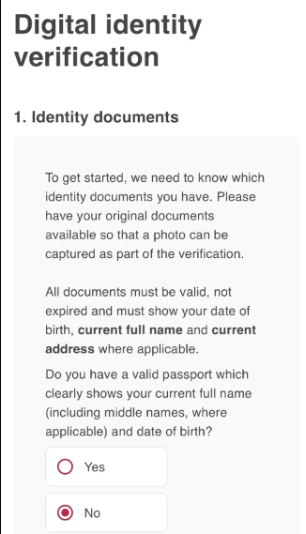
- From the Verifile screening form, answer the questions about which ID documents you hold
- Based on your answers, you’ll be guided to the relevant Digital ID steps
If you don’t hold the required documents, your Digital ID check may be cancelled and you’ll continue with the rest of the form instead.
2. Start Digital ID in the form
- Scroll down and select "Continue with Digital ID".
- This will lead to a pop up asking you to Share your Details.
If you don’t already have either the Post Office EasyID or Yoti app installed, you’ll be taken to your device’s app store to download and install.
Once installed, return to the browser page and select "Share Details".
3. Set up the app
- Download Post Office EasyID or Yoti, open it
- Select "Get Started".
- Choose Share Details and follow the instructions within the app.
- Select the option to proceed via the button or link shown on screen.
4. Secure your account
The app will ask you to:
- Confirm your age
- Accept the terms and conditions
- Choose whether to allow activity tracking
- Add a contact number
- Create a PIN
- Scan your face
Once completed, continue to the app home screen.
5. Scan and upload your documents
- Follow the prompts to start scanning your ID documents
- Select the issuing country for your passport and scan it
- Scan the passport chip when prompted
- Add/confirm your current address and review the information provided
6. Send details back to Verifile
- When prompted, send your details to Verifile and complete a final face scan.
- A message stating “return to Verifile” will come up to confirm when this is complete, at this point you must click close the tab showing the below message and return to the Verifile portal.
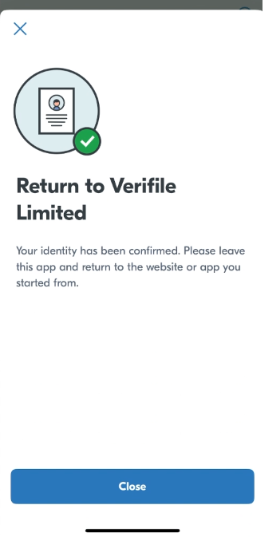
Return to your browser where the Verifile site is open and wait while your details transfer.
Please note, once you’ve returned to the Verifile site and if your details have not transferred across, please follow the instructions from Step 2 again:
Press “Continue with Digital ID”.
Once you click above, a pop will appear asking you to share your details.
Press "Share details". You will be asked to scan your face, please do so and once complete, return to the Verifile portal.
Kindly note that your background screening cannot progress until the Verifile form has been fully completed. We would appreciate it if you could now return to the Verifile portal and complete the remaining sections.
7. Finish the form
- Once the transfer is complete, select "Start Personal Details".
- Continue with the rest of the online screening form and submit your information.
- Once submitted, you will get an email confirming you have completed your form.
Important to know
- Make sure your documents are ready before starting scans.
- If you pause or leave the app, you may be asked to repeat some steps.
- Always return to Verifile after leaving the app to complete the process and avoid delays.
- If you have been unsuccessful in transferring your information from the Digital ID app to Verifile, please give us a call on 01234 339 300.
YOU MAY ALSO FIND THIS HELPFUL
If you would like more in-depth information, please use the following guide:
Need help?
Live Chat is available on the right, and you can self-serve via our Help Centre.
Call us at +44 (0) 1234 339 300 (Monday to Friday, 8:30 a.m. to 5:30 p.m. U.K. time).
Email hello@verifile.co.uk.
We regularly update this content to ensure its accuracy and usefulness. If something doesn’t look right, click the feedback button below and let us know.
Was this article helpful?
That’s Great!
Thank you for your feedback
Sorry! We couldn't be helpful
Thank you for your feedback
Feedback sent
We appreciate your effort and will try to fix the article